

ClassWiz CW Series is designed teaching and studying for today. Its brand-new approachable UI and various features encourage students’ math learning.
FX-82CW
₨ 5,800
Description
Enjoy math learning with ClassWiz CW series!
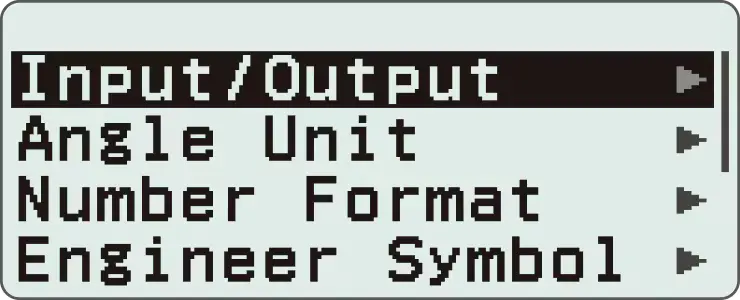
Intuitive, approachable new design
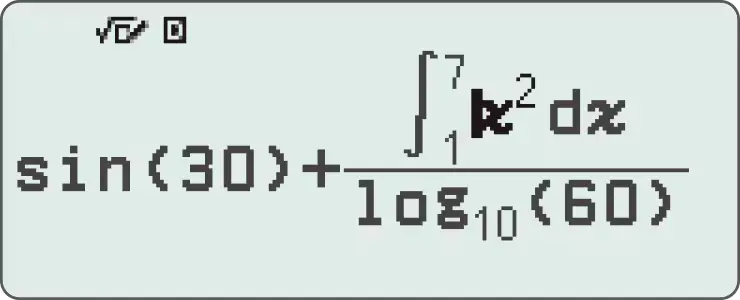
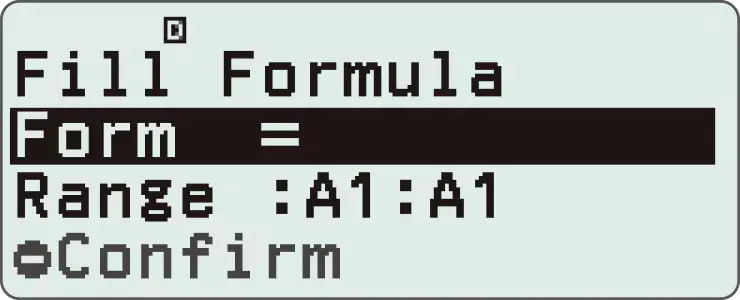
High-definition & 4-gradation display
With the 4-gradation display, the current input location is displayed in a darker color
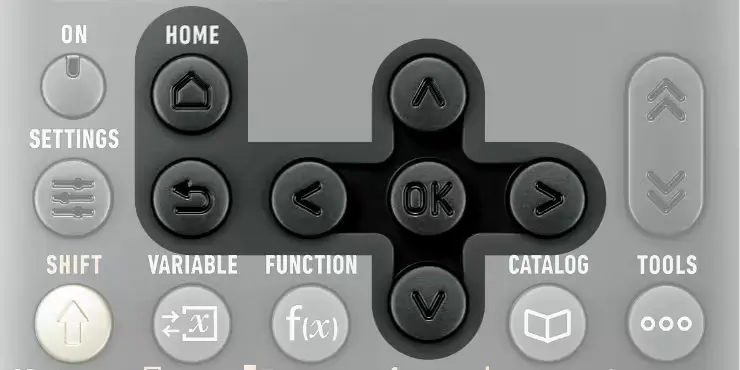
Intuitive cursor operation
Simple cursor-based operations and a key layout that follows the natural flow of use.
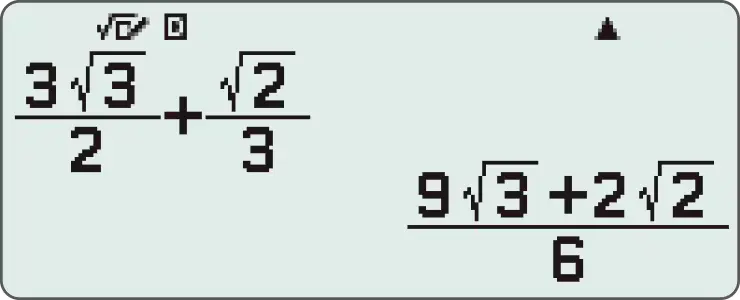
Natural Textbook Display
Intuitive, easy-to-learn icon display
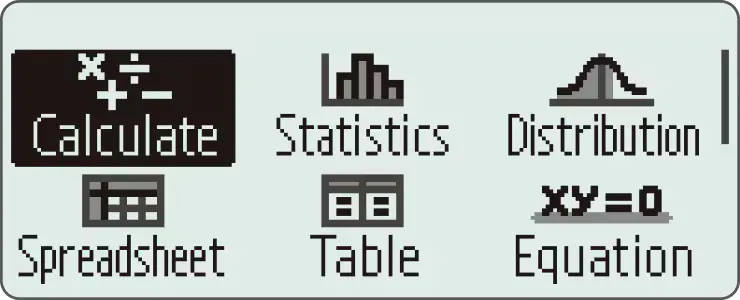
*The image is the display of fx-991CW.
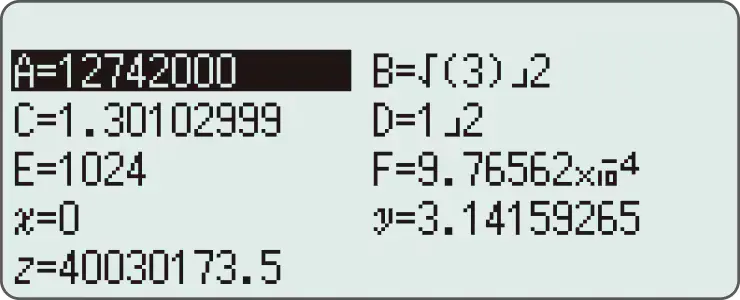
List display function for thorough, speedy learning
High-speed calculation
Fast calculation for smooth performance in class or during examinations.
Packed with features to encourage learning
Calculator Apps
Easily select a calculator app from the Home screen that is suitable for the type of calculation that you want to perform.
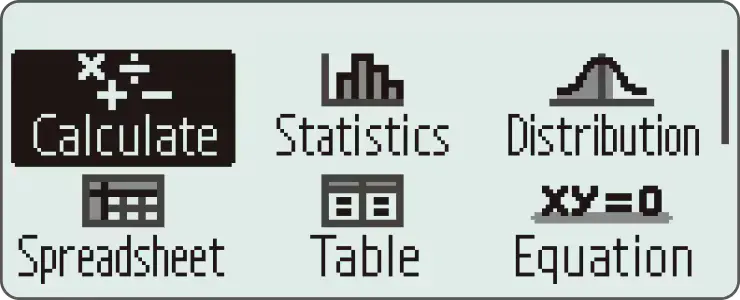
*The image is the display of fx-991CW.
Math Box
The following functions to support math learning: Dice Roll and Coin Toss for probability simulations.
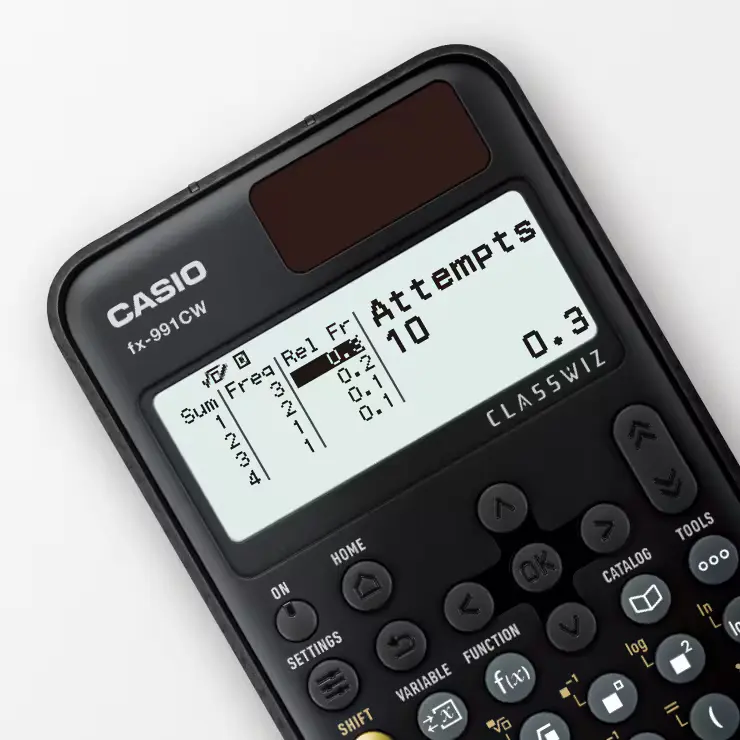
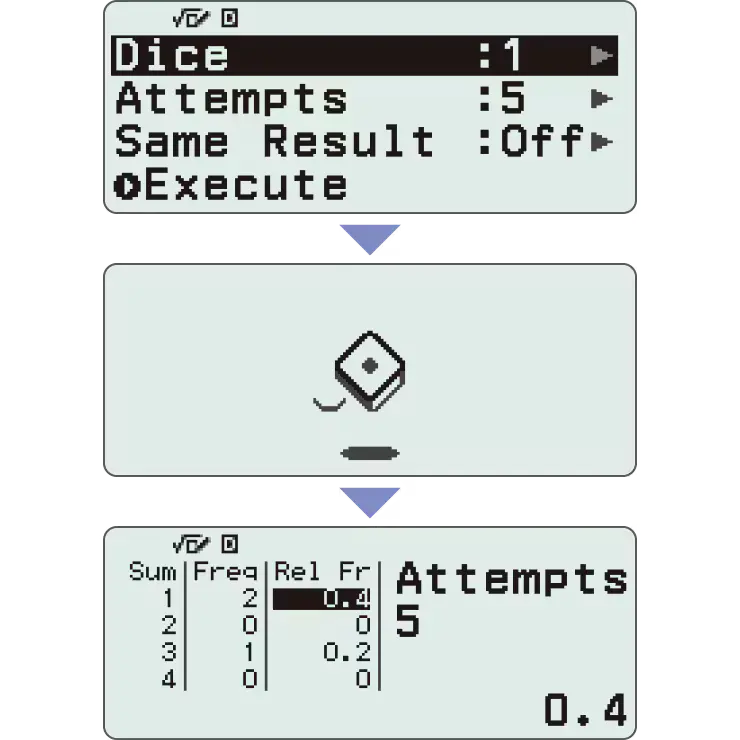
*Screen images might differ from the final product.
Calculate
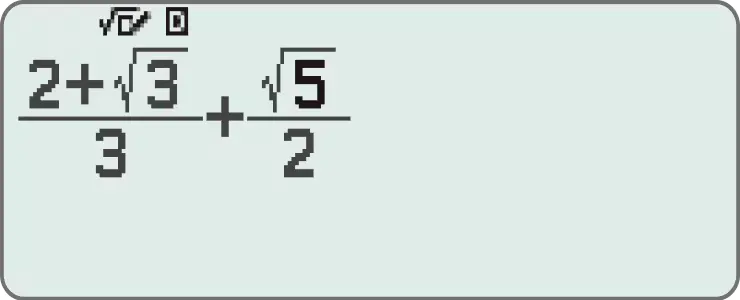
General calculations
Statistics
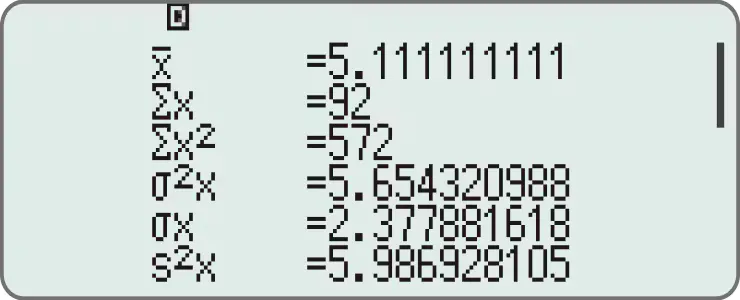
Statistical and regression calculations
Table
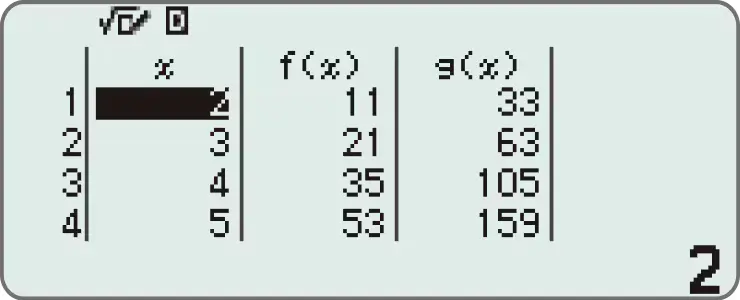
Generates a number table based on one or two functions
Online visualization service using QR codes
Easily generate QR codes of equations input into the calculator. Graphs and other graphics can be displayed on smartphones or tablets.
1. Input data
2. Generate & scan QR code
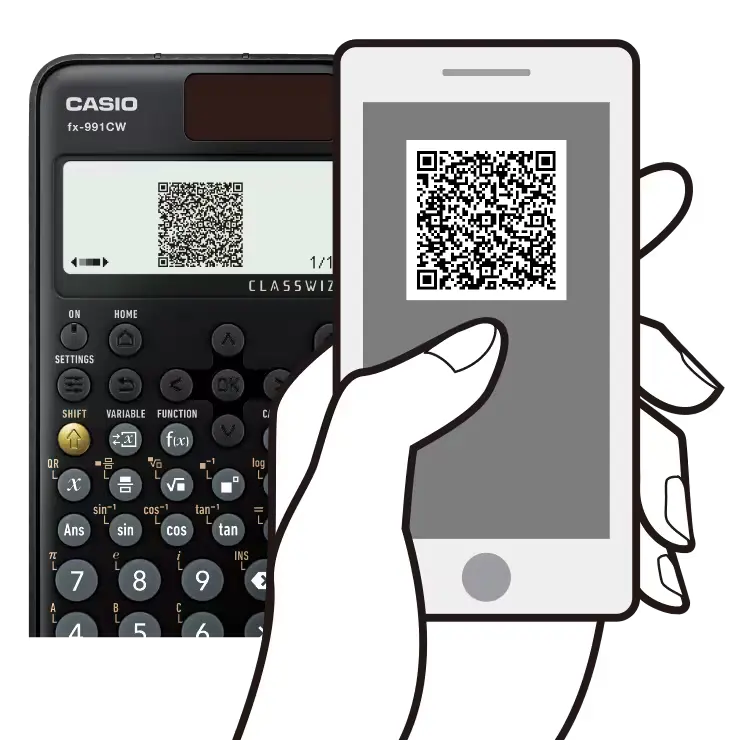
3. Graph on smart device
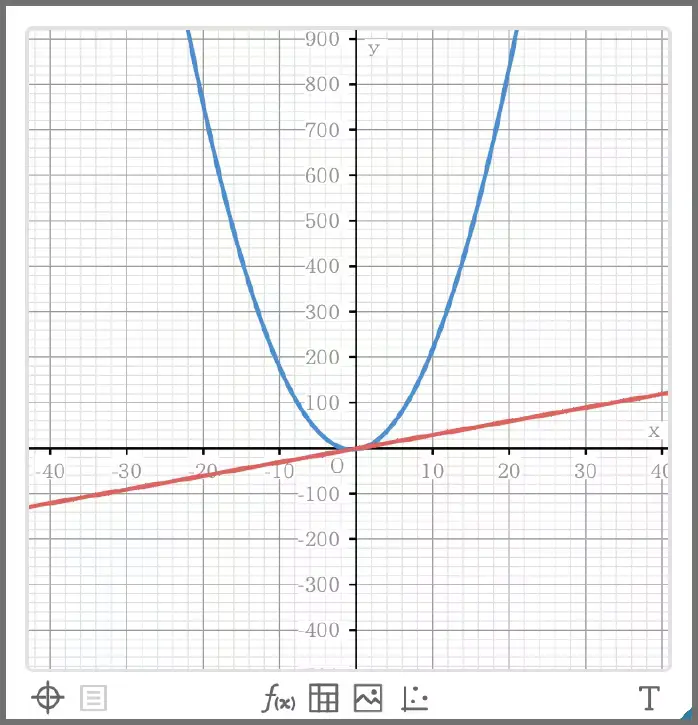
4. Analyze graph
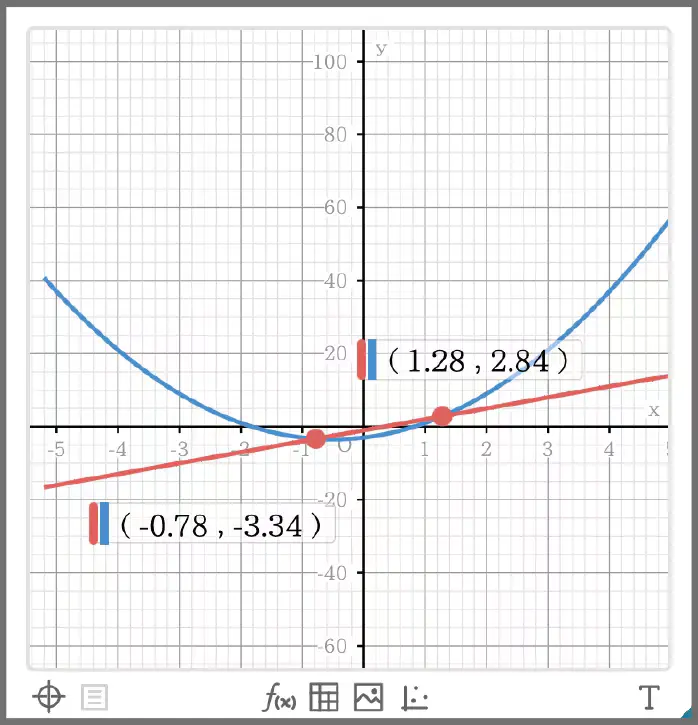
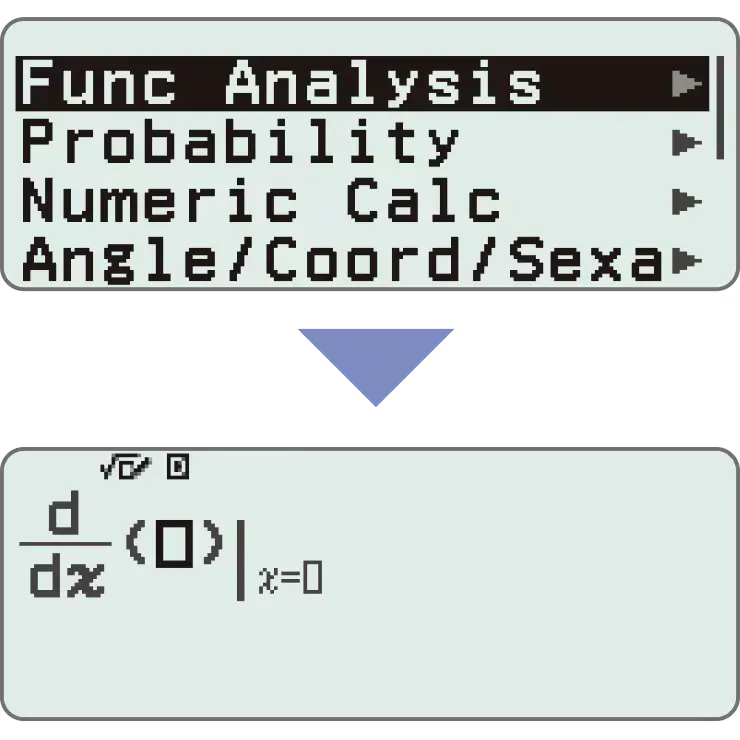
Variety of functions that are available in calculator apps to support students’ learning.
CATALOG

The CATALOG menu shows Store values to variables categories of commands, functions, and symbols according to the calculator app that you are currently using and the current status of the app (the displayed screen or current settings).
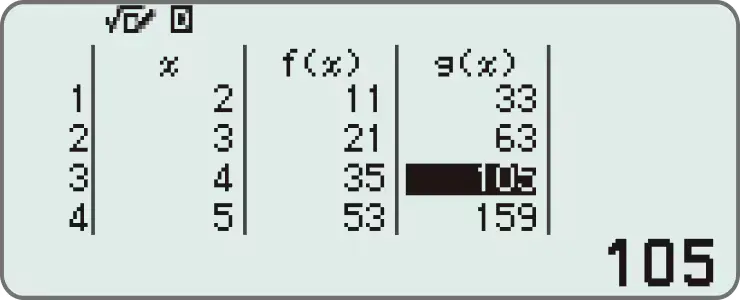
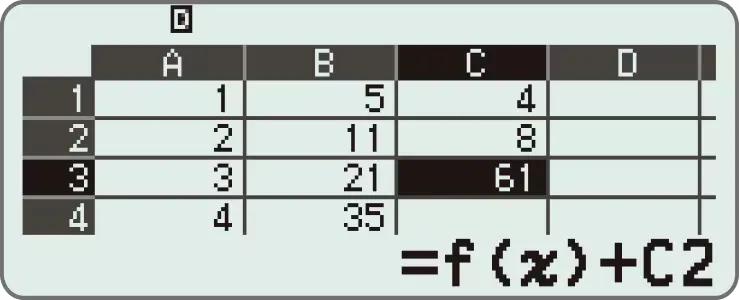
FUNCTION

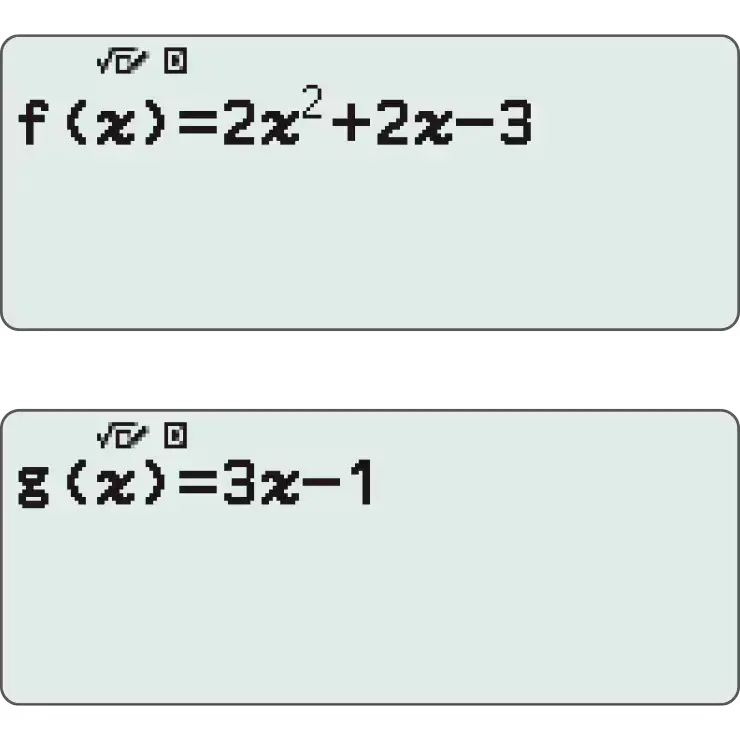
You can store functions in both the f(x) and g(x) memory.
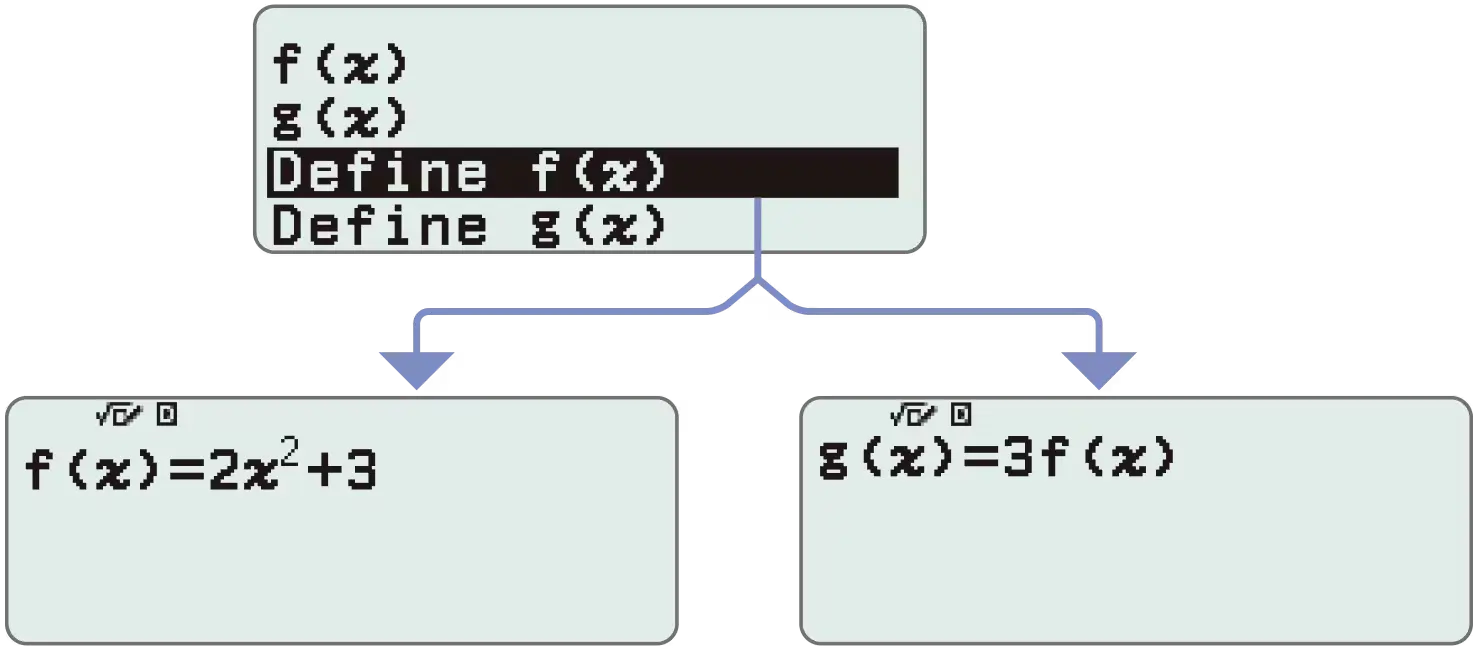
Examples:
Create a table in the Table app
Call from a spreadsheet
VARIABLE
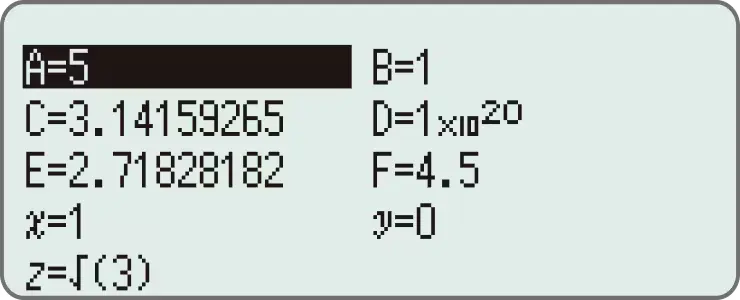
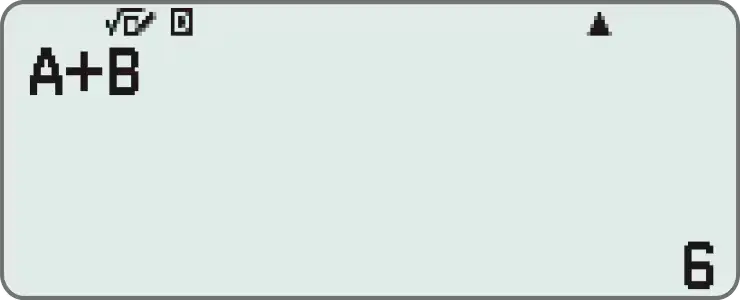
You can store values to variables and use the variables in calculations.
<Things you can do with the Variable key>
Display the variable list screen
Store values to variables
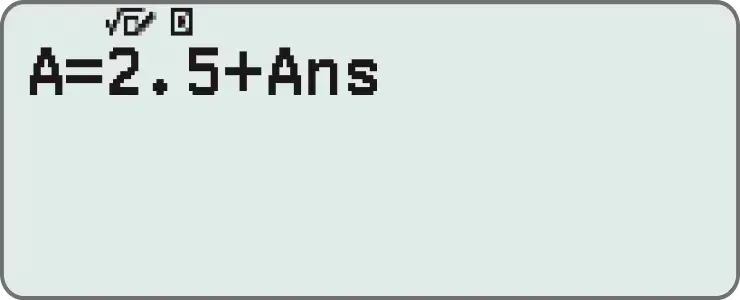
Use saved values (can be called from any app)
Product features
Non Programmable
Non Graphing
Product type
Non Programmable
Non Graphing
Number of digits
10 + 2 digits
Liquid crystal display
Natural textbook display
Icon menu
Dot matrix display
High Resolution
4-gradation display
Key characteristics
Plastic keys
Key functions
Negative Sign
Power Off
Memory
Variables: 9
Variables List
Answer Memory
Function memory
Memory Protection
Reset Function
Power supply
AAA×1 (R03)
Approximate battery life Main 2 years
Auto Power Off
Size (D × W × H)
162 × 77 × 13.8 mm
Weight
100 g
Accessories
Hard Case
Display format settings
Number Format: Fix
Number Format: Sci
Number Format: Norm
Engineering Notation
Fraction / Decimal Conversion
Angle Unit (Degree, Radian, Gradian)
Improper/Mixed Fraction
Sexagesimal/Decimal Conversion
Digit Separator
Basic calculation
Basic Calculation
Bracket Calculation
Fraction Calculation
Degree, Minute, Secound (Sexagesimal) Calculations
Reciprocal Calculation
Percent Calculation (scientific calculator function)
Factorial Function
π
Calculation with √ and π
Rounding Function
Advanced calculation
Transcendental number: e
Numeric Table
List based STAT-data editor
1-Variable statistics
2-Variable statistics and regression
Mathbox (Coin Toss, Dice Roll)
Applied calculation
Continuous Calculation
Replay Function
Multi-replay Function
UNDO
Basic functions
Basic Mathematical Functions
Independent Key x
Absolute Value Calculation
Square and square root (x2/√)
Power and radical root (xy/x√)
Trigonometric, inverse trigonometric (sin/cos/tan/sin–1/cos–1/tan–1)
Hyperbolic, inverse hyperbolic (sinh/cosh/tanh/sinh–1/cosh–1/tanh–1)
Exponential, logarithmic (log, ln, 10x, ex)
Base specified logarithmic
Coordinate Conversion
Combination / Permutation
Prime Factorization
Random Number Generation
Random Integer Generation
Statistical data
List based STAT-data editor
Connection to peripheral devices
QR Code
Authenticity Check